

Duplicate files are copies of the same files. They cluster together in almost everywhere in every folder where you have your images. If you look at these folders you’ll find a bunch of dupes for possible deletion. But how can you identify them? They are the same files but come with a different name, size and sometimes even different location.
Identification of these files is important. Two ways exist. First way is to do it manually with Windows. But, unfortunately, your Windows doesn’t provide an easy way to find all identical photos. And the second way is to use a third-party software program. This article discusses both.
- Delete Duplicate Images Manually
You have tons of images in your system. Trust me it’s not easy to review them all, individually. And this is risky as well, as there’s a chance you could accidentally delete some of your important images. We all know that images exist in different file extensions such as JPG, JPEG, GIF, PNG, etc. Anyhow, follow these two steps:
- Check Your Drive Index Settings
Yes, by all means, it’s important. Make sure you’ve turned it on. It indexes all of your files you stored and thus improves your Windows search experience. The good point is that drive indexing shows you most relevant results with a quick search. And the negative point, if you’ve turn drive indexing off, you’ll never get the relevant results. Follow these steps:
- Press Windows Key + X.
- Search Indexing options
- Click Settings
- Open the keyword from Search Results
- Click Modify and then Show all locations
- Make sure you’ve checked all drives (under Change selected locations group)
- Click Ok | Close.
- Now Search and Delete Duplicate Images
- Open Computer Icon
- Open a drive that contains JPG, JPEG, GIF and PNG duplicates.
- Press F3 (it starts your search).
- Type these keywords, one-bye-one:
- .jpg
- .jpeg
- .png
- .gif
- Done? Press Ctrl + F1 to expand the Ribbon if it is minimized
- Click View
- Click Preview Pane (under Panes category)
- Click Group by (under Current view category)
- Select Name (from the drop down menu of Group by)
- Do not forget to select the Ascending option
- Click Details (under Layout category)
- Now you’ve all search results in an ascending order with all details (name, date, type, size and parent folder).
- Found same pictures? They’re right there with the original ones.
- Compare them all for similarity..
- Select them. Here’s how:
- Ctrl + Click: Select any files in non-sequential way
- Shift + Click: Select files in a sequence
- Here you go! Press Delete (it deletes all files). You can also move them to a new folder if you don’t want to delete some images.
Whew! See how wildly you need to scroll all your images and delete them. This is annoying.
- Try Clone Files Checker, Intelligent Duplicate Photo Finder
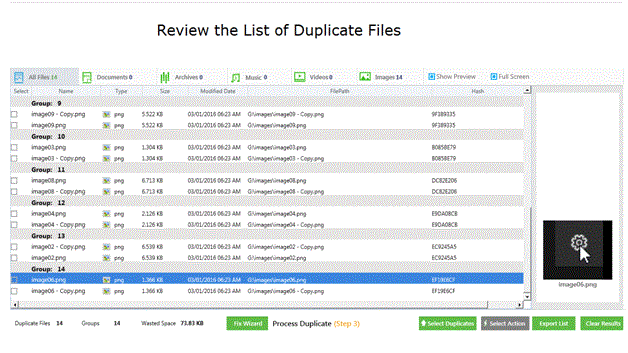
The second option is to use Clone Files Checker (CFC). This is automatic as it searches all cloned files from your PC. All you have to do is to specify whether to delete similar images at once (Auto Fix) or review them first and then delete (with Review & Fix). CFC stands out for these reasons:

- It creates backup of all duplicate images before deletion.
- It has cloud scanning features which can help you track and remove duplicate photos, JPGs, JPEGs, GIFs in your Google Drive and Onedrive.
- Scanning is quick.
- It comes with an advanced algorithm that doesn’t allow you to lose any of your important file accidentally.
- What’s more: It records your scan history.
- And it supports almost all image files for duplicate detection: .jpg, .jpeg, .png, .gif, and so on.
Liked it? Here’s how it processes:
- Download and install CFC.
- Add directories.
- Choose the type of file you need it to scan. If you want it to scan only image files, select Custom and check images. If you go for all, select All Files.
- Have any specific size to search? Yes, you can specify the size of the files you want.
- You’re all set. Simple, isn’t it. Now hit scan and CFC will do the rest.
