

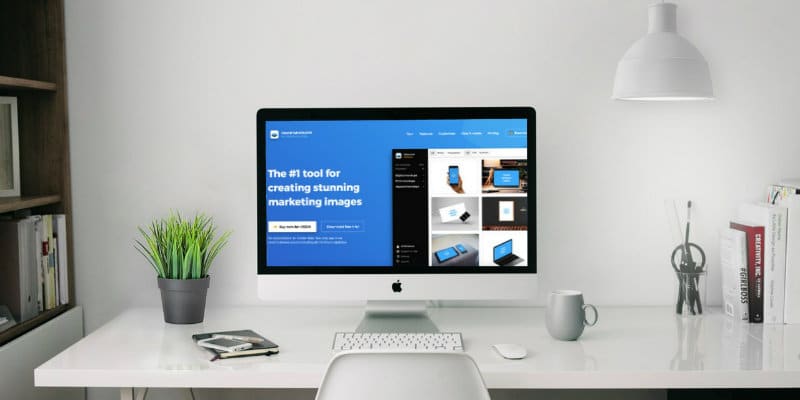
Creating stunning mockups for your designs is a crucial step in presenting your work professionally. Mockups help clients, colleagues, and stakeholders visualize how your design will look in real life or within a specific context, which is vital for effective communication. Whether you’re designing a logo, website, packaging, or mobile app, mockups can elevate the perceived quality of your work. Here’s a guide to help you create beautiful and realistic mockups for your designs.
1. Choose the Right Tools
To get started, select the right tools for creating mockups like Figma Resources. Popular software like Adobe Photoshop and Illustrator offers a wide range of templates and features for creating mockups. Photoshop is especially great for detailed, high-quality mockups, while tools like Sketch and Figma are perfect for designing app or web-based mockups.
2. Find High-Quality Mockup Templates
Rather than starting from scratch, many designers opt to use pre-made mockup templates. Make sure to choose templates that reflect the context your design will be placed in. For example, if you’re designing a logo, you might look for a mockup of a business card or billboard. If it’s a website, use a laptop or mobile screen mockup.
3. Understand Your Design’s Context
Before inserting your design into a mockup, think about the context in which it will appear. For a clothing design, you might use a t-shirt mockup, while for a logo, a signboard or business card might be more suitable. Contextualizing your design in real-world settings helps the viewer better understand how it will look in practical use. If you’re showcasing a digital design, use mockups that feature devices like smartphones, laptops, or tablets.
4. Use Smart Objects in Photoshop
If you’re using Photoshop, take advantage of Smart Objects. Smart Objects are layers that allow you to insert your design without altering the integrity of the mockup. This means you can easily replace your design and maintain the original resolution. To use a Smart Object, double-click on the mockup’s Smart Object layer, paste your design into the window that appears, and save it. The design will automatically fit into the mockup and match the perspective and shadows of the original file.
5. Add Realistic Details
One of the key elements of creating stunning mockups is ensuring they look realistic. Don’t just place your design on the mockup and call it a day. Add shadows, highlights, and reflections to make the design blend naturally into the scene. Use layer styles like bevels or embossing to make elements stand out. If the design will be displayed in an environment, such as a coffee shop or office, consider adding small details like ambient lighting to enhance the overall presentation.
6. Maintain Consistency Across Mockups
If you’re showcasing multiple designs or products, it’s important to maintain consistency across your mockups. Use the same type of mockup template or background, and ensure your designs are presented in similar lighting and angles. Consistency will help create a cohesive presentation, which makes your portfolio or pitch more polished and professional.
By following these steps, you can create mockups that not only showcase your design in the best light but also demonstrate your attention to detail and professionalism.Figma Resources Mockups are an invaluable tool that can take your presentations to the next level, making your designs look more tangible and appealing.
